Learning Objectives
After completing this lesson, you’ll be able to:
- Configure an automation with a Manual Trigger.
- Create and use Manual Parameters to pass input to an automation.
- Create an automation app.
- Trigger an automation through an app.
In this lesson, you will:
- Optional: Watch a demonstration video (if you have not attended the live training).
- Scroll down to read the activity instructions below and follow the steps in your lab.
- Complete the quiz at the end of this lesson.
- Click 'Next' to mark the lesson complete.
Learning Objectives
After completing this lesson, you’ll be able to:
- Configure an automation with a Manual Trigger.
- Create and use Manual Parameters to pass input to an automation.
- Create an automation app.
- Trigger an automation through an app.
In this lesson, you will:
- Optional: Watch a demonstration video (if you have not attended the live training).
- Scroll down to read the activity instructions below and follow the steps in your lab.
- Complete the quiz at the end of this lesson.
- Click 'Next' to mark the lesson complete.
Resources
- Starting project | C:\FMEData\Workspaces\AutomateWorkflowsWithFMEFlow\automate-workflows-with-fme-flow--starting-project.fsproject
- ElectionVoting.gml | C:\FMEData\Data\Elections\ElectionVoting.gml

This lesson takes a slight detour into Flow Apps to cover Automation Apps. For more training on Flow Apps, see Create No-Code Web Apps.
Automation Apps
FME Flow Apps are no-code web applications that let you access FME functionality without any FME experience. They simplify the user experience by turning technical workflows into easy-to-use web forms you can access and share with a URL. Automation Apps allow you to trigger and control input to a pre-built Automation from the web application.
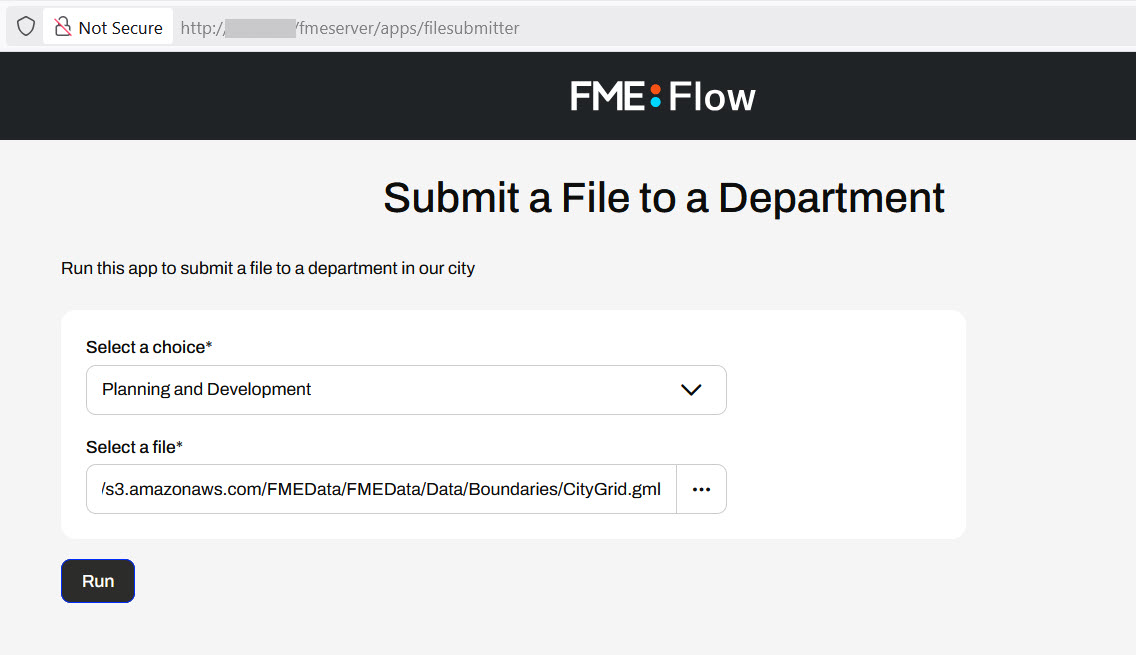
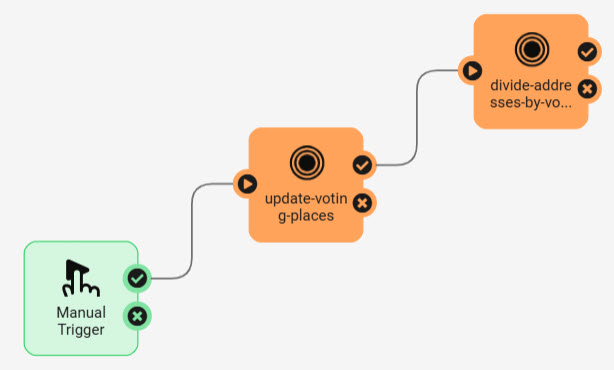
To use an Automation in an Automation App, your Automation must use a Manual Trigger. Manual Triggers do not respond to external events and instead trigger Automations on demand. Automation Apps send messages to Manual Triggers to kick off the Automation.
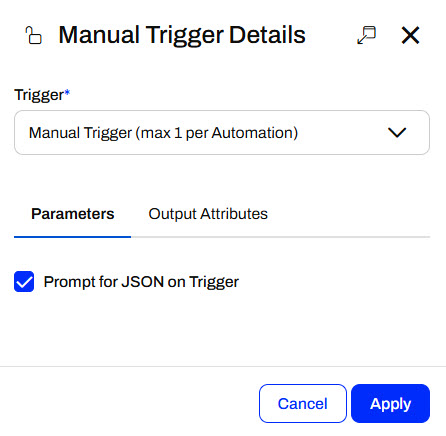
The only Parameter to configure for a Manual Trigger is the Prompt for JSON on Trigger option. This option allows you to enter JSON input into Automation when you manually trigger it from the Automations canvas. It is usually unnecessary for Automations you plan to trigger through Automation Apps.
Manual Parameters
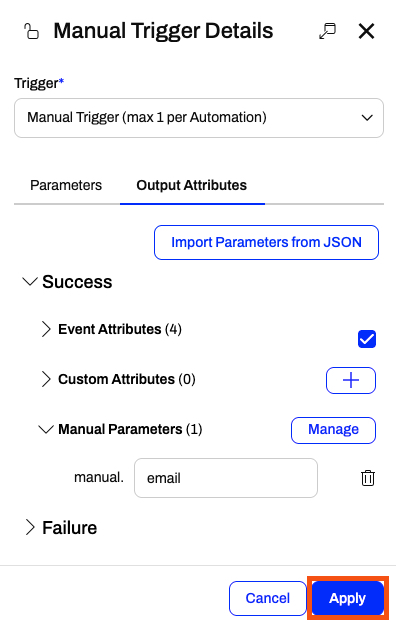
Manual Triggers have unique Output Attributes called Manual Parameters. Manual Parameters are customizable attributes that you create to take input into your Automation. To add and edit Manual Parameters for an Automation, you must open the Manual Trigger Details. In the Output Attributes tab, you'll see Manual Parameters nested under Success.
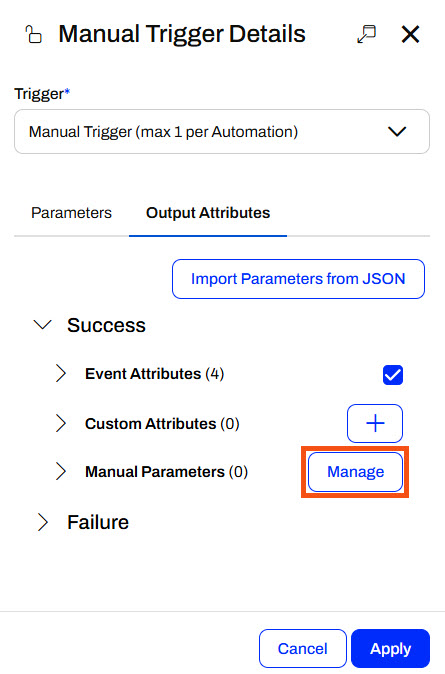
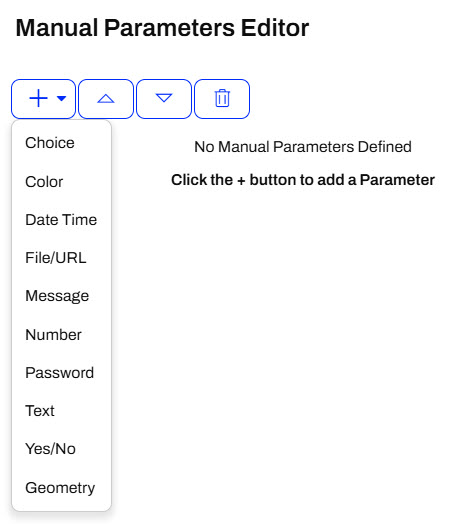
You click Manage to open the Manual Parameters Editor, where you create Manual Parameters. Like User Parameters, there are many options for different types of input to your Automation, depending on your workflow.
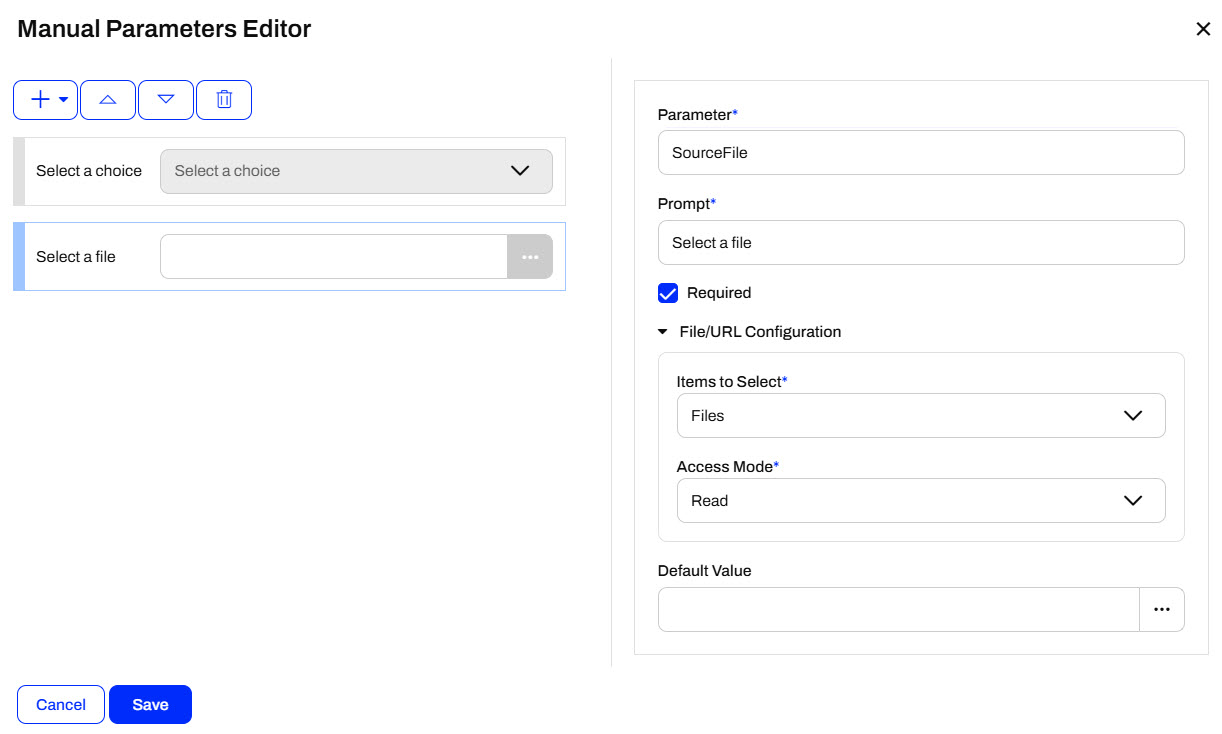
The Manual Parameters Editor displays the list of parameters on the left side and the properties for individual parameters on the right.
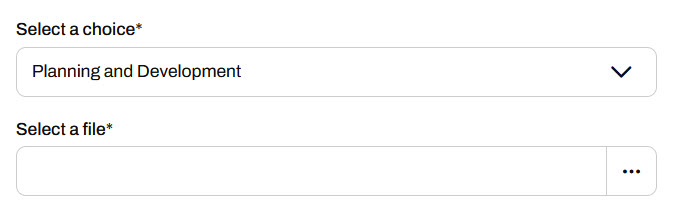
When you create an Automation App, these parameters are displayed on the app's web page for users to enter their values.
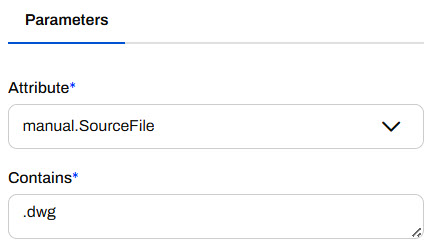
To use the input values in your Automation, you reference Manual Parameters in downstream actions like any other Output Attributes and Automation Parameters. All Manual Parameters begin with the prefix manual.
Creating Automation Apps
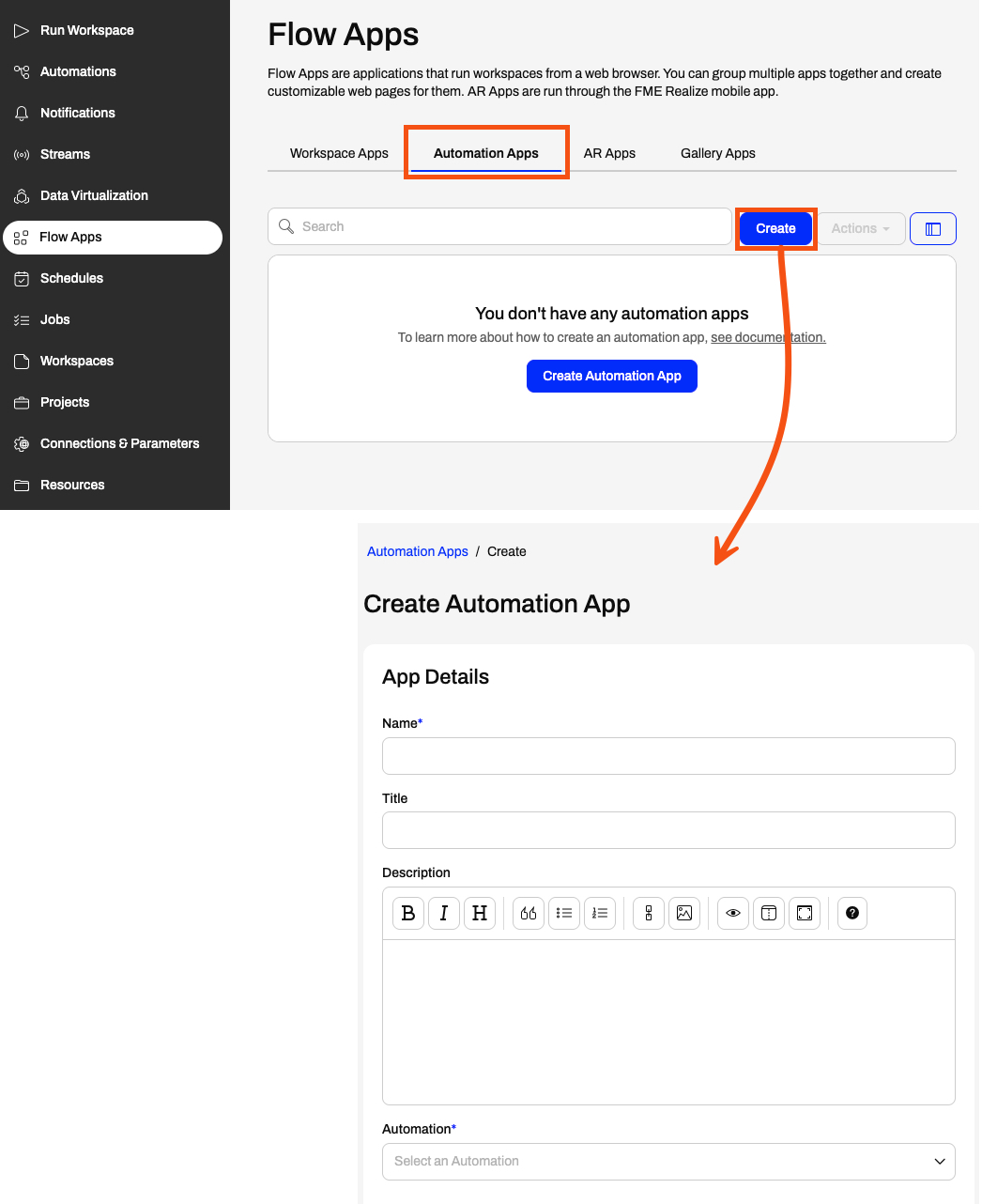
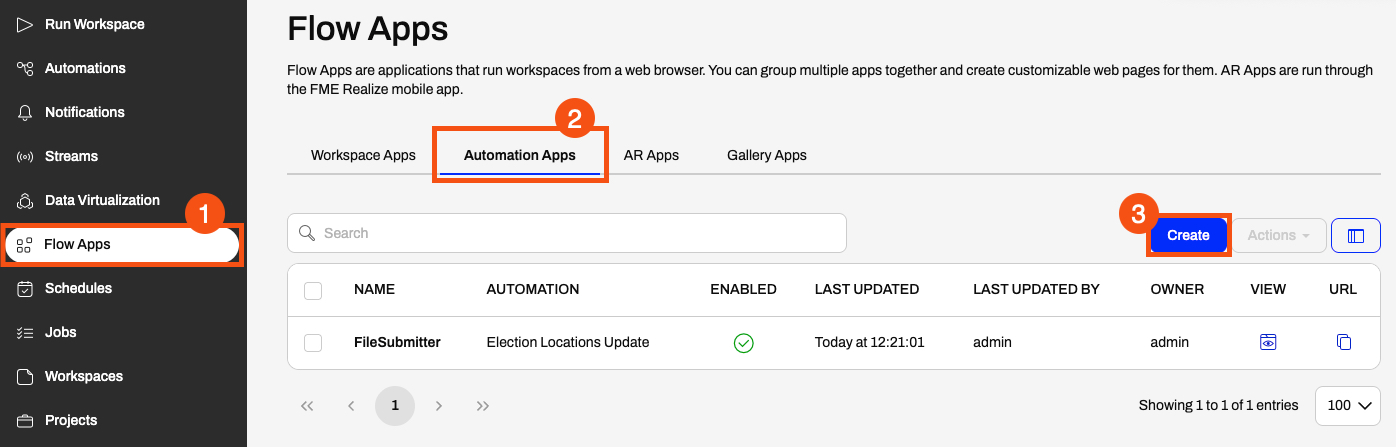
You create Automation Apps just like any other Flow Apps, by filling out a form with your app details, the Automation you'd like to run, any default parameter values, and customizing the look of your app. To access the form, expand Flow Apps in the side menu and select the Automation Apps tab. Create opens the form to fill out for your app.
For the Automation option, you'll only be able to select Automations on FME Flow that have a Manual Trigger.
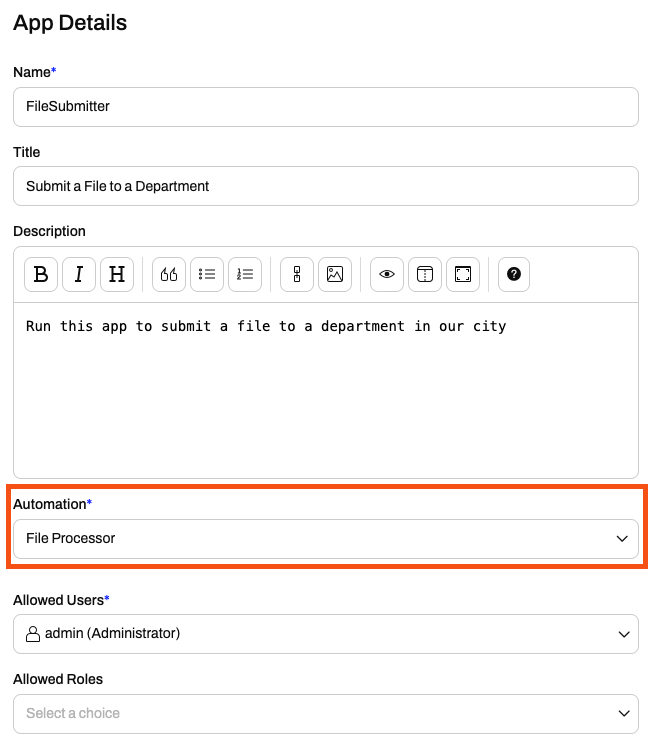
In FME 2026.1, there is currently a bug where the Create Automation App pages display all automations in the Automation field, not just automations that use a manual trigger. If you select an automation without a manual trigger, it will throw an error at runtime.
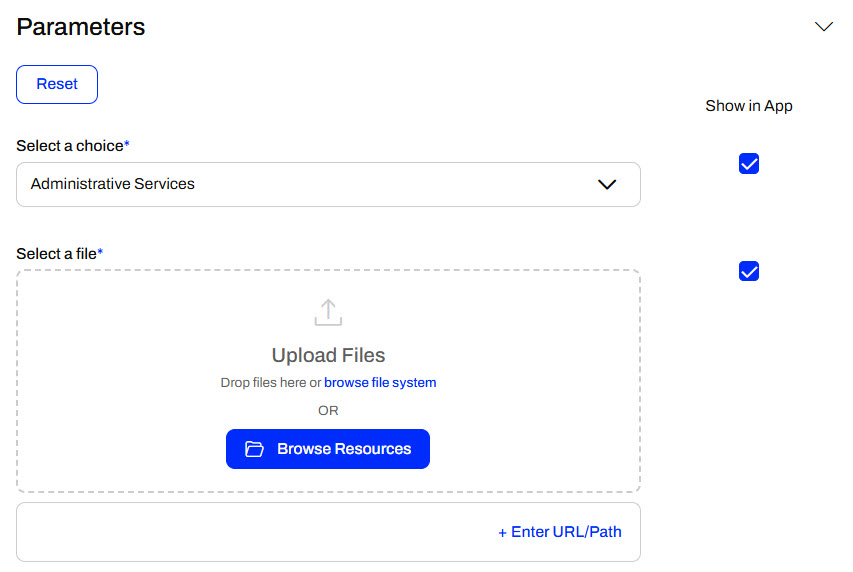
Once you select an Automation, the Parameters section populates with the Manual Parameters you created in the Manual Trigger. You may set default values for parameters and optionally hide them from the app so the end-user cannot alter the default value.
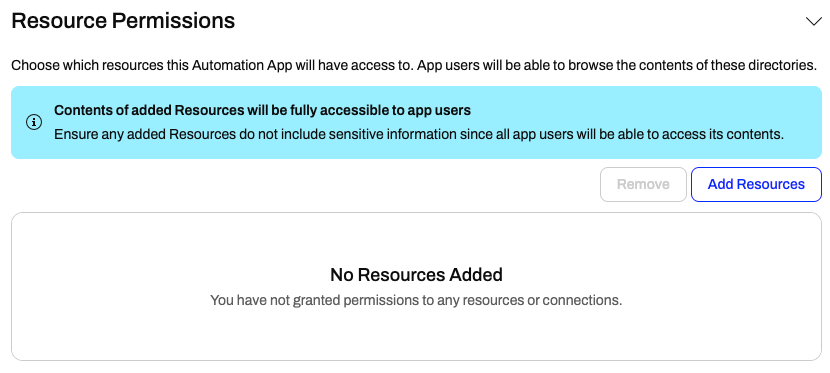
The next section is Resource Permissions, which allows you to grant app users access to certain contents and directories in Resources. You may want to grant access to a Resources location so app users can select data for processing from it.
The last section to create your app is the Customize section. You can add icons and banners and change the app's colors to remove the default FME Flow branding and match your organization. Ultimately, you can make Flow Apps look like they don't use FME Flow at all.
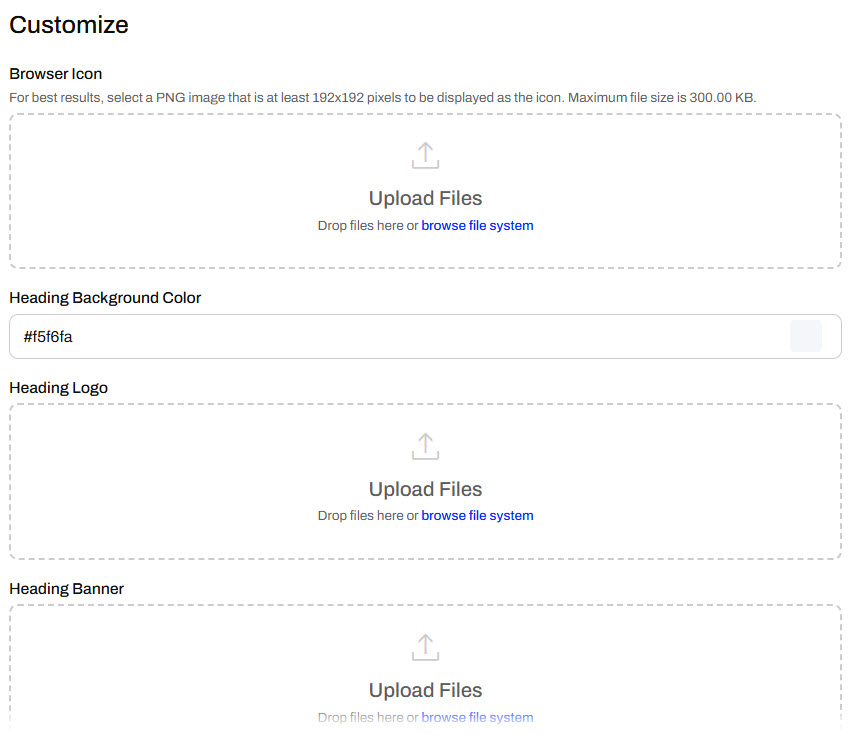
For more information on customizing apps, see our Flow Apps documentation and/or the Getting Started with FME Flow Apps tutorial.
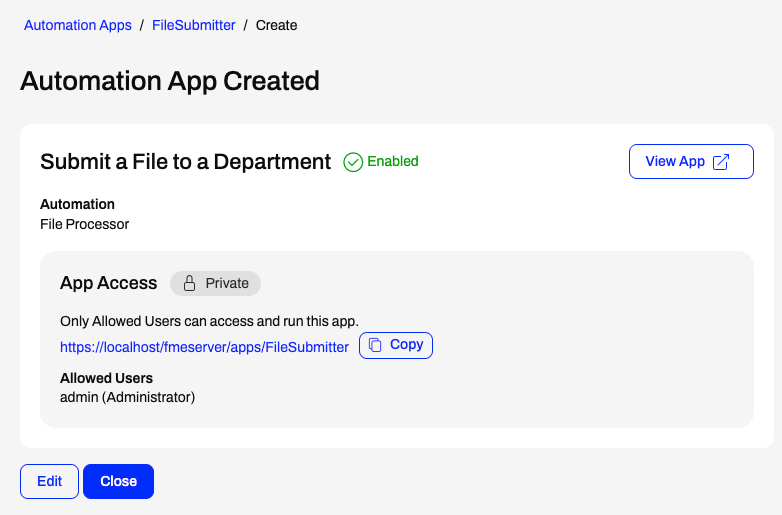
Once you create your app, FME Flow displays the app URL and some accessibility information. You can view the app in a new tab or copy the URL to share.
Running Automation Apps
To access an automation app, you must be logged in to FME Flow and in a web browser with access to FME Flow. If you are already logged in to FME Flow in the browser session, the app will open without prompting you to log in again.
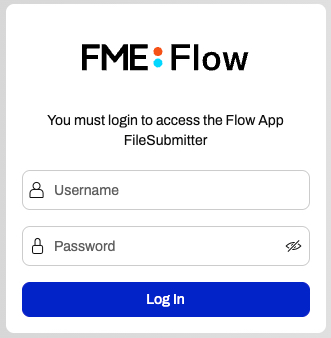
Once the app loads, enter your parameter values and click Run.
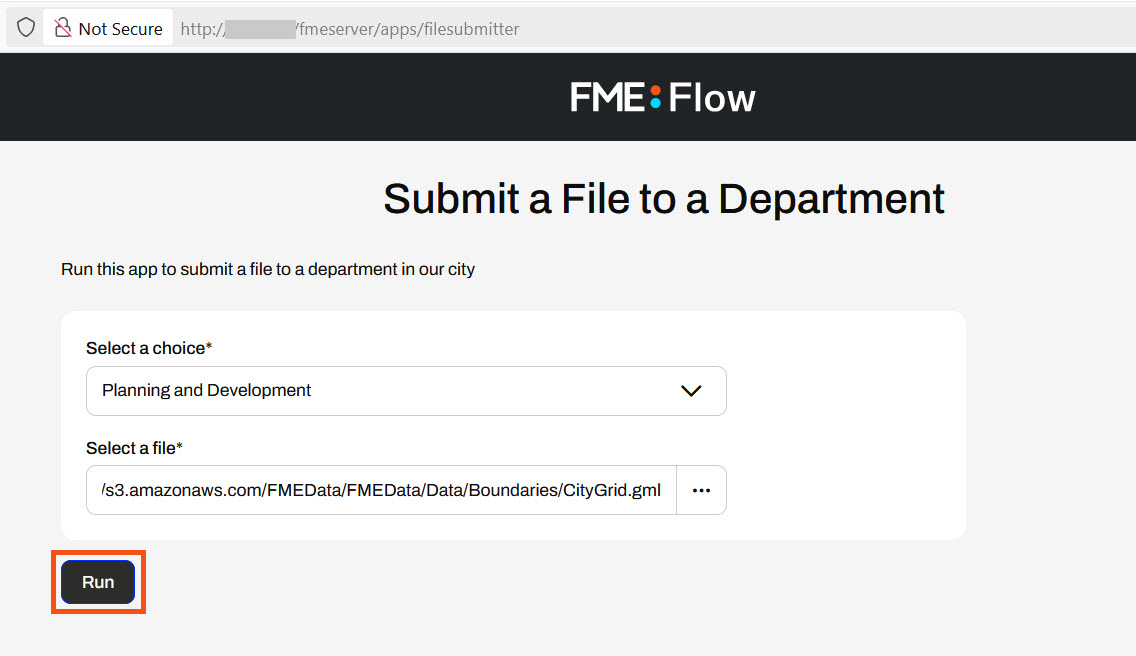
FME Flow will display a message at the top right of the app indicating whether the Automation triggers successfully or not.

Automation App Troubleshooting Tips
- To run an automation using an app, the automation must use a Manual Trigger. You cannot select automations without a Manual Trigger from the Create Automation App page.
- To run an automation from an app, you must start the automation in the running state.
- If you receive a warning message saying, "The selected automation is disabled," your app is enabled, but the automation has not been started. Please return to the automation and start it.


For further instructions and information on Automation Apps, see our documentation on Automation Apps and Manual Triggers.
Exercise
This exercise continues where the Chain Multiple Jobs in Automations exercise left off. You should complete the previous exercise before continuing with this one.

Sven continues working with his Election Locations Update automation. It works great to update the data annually; however, some of his colleagues in the Planning department want to update the Elections data themselves when they use it for specific projects. Sven would like to allow his colleagues to manually trigger his automation so they don't have to ask him to run it. Not all of Sven's colleagues are familiar with FME Flow Automations, so he creates an automation app that lets them trigger the automation.
In this exercise, you will:
- Add a manual trigger to Sven's automation.
- Configure manual parameters to take input to the automation.
- Create an automation app to trigger the automation.
1) Open Automation
First, you'll want to modify Sven's existing automation to add a manual trigger so it can be run with an automation app.
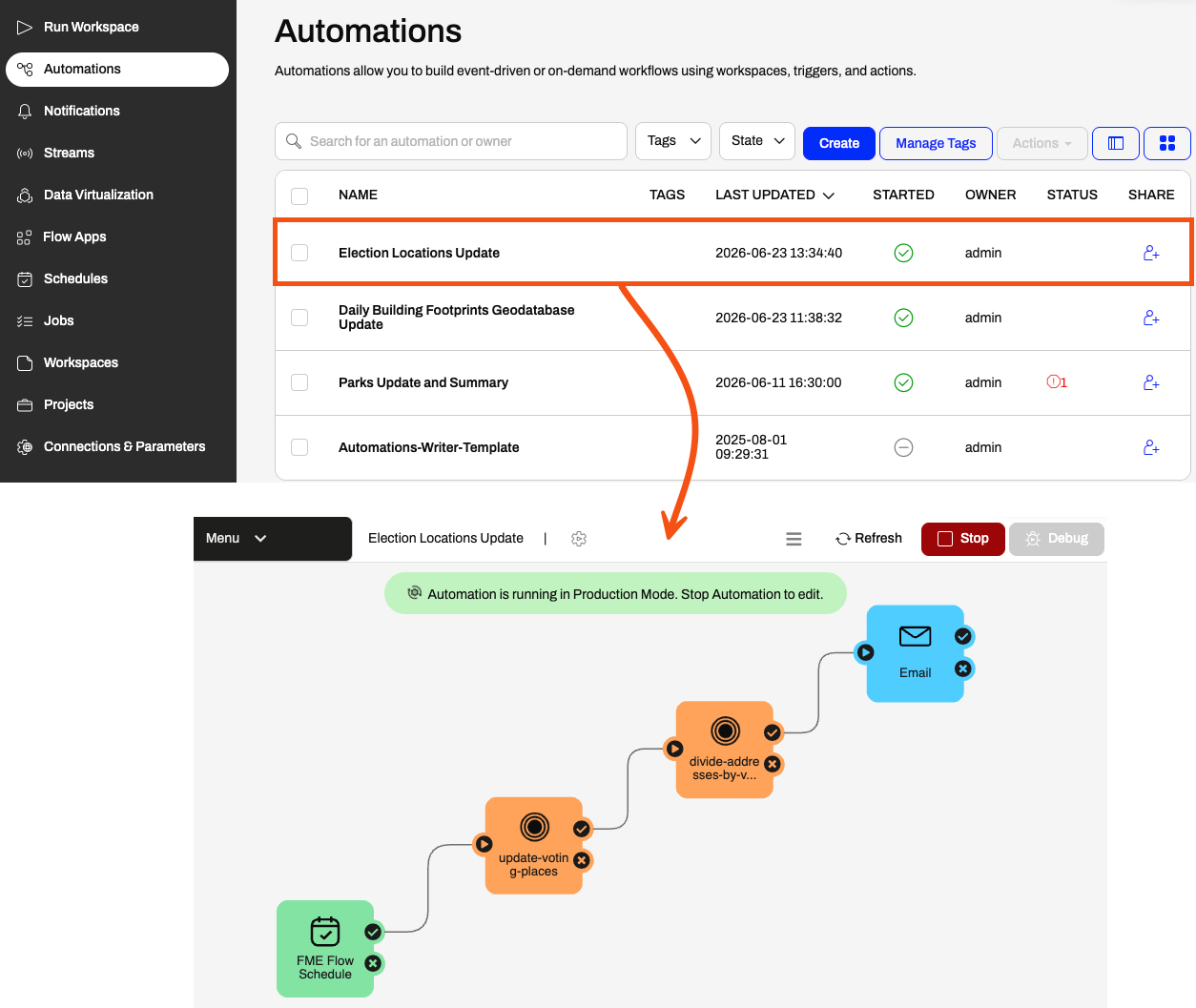
- Navigate to FME Flow and open Automations.
- Click the Election Locations Update automation to open it.
2) Stop the Automation
- Stop the running automation to edit it.

3) Add a Manual Trigger
- Add a second trigger to the canvas.
- Connect it to the input port of the update-voting-places workspace action.
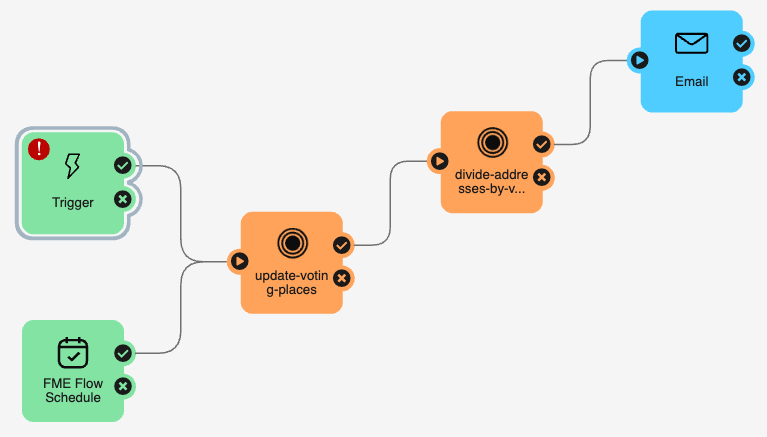
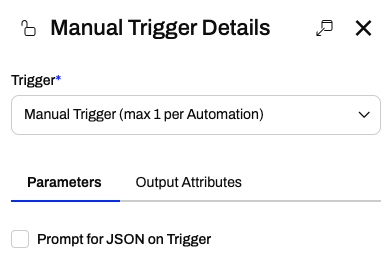
- Set the Trigger to Manual Trigger.
- In the trigger Parameters tab, disable Prompt for JSON on Trigger.
- You don't need to take input to the automation when it is manually triggered from the automation itself.
4) Add Manual Parameter
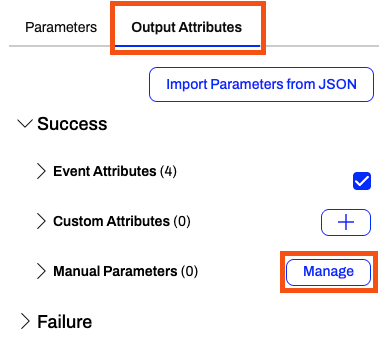
- Go to the Output Attributes tab and expand the Success section.
- Select Manage next to Manual Parameters to open the Manual Parameters Editor.
You want the user running the automation app to enter their email so they receive an alert that the automation triggered. To do this, you'll take their emails as input using a Text parameter.
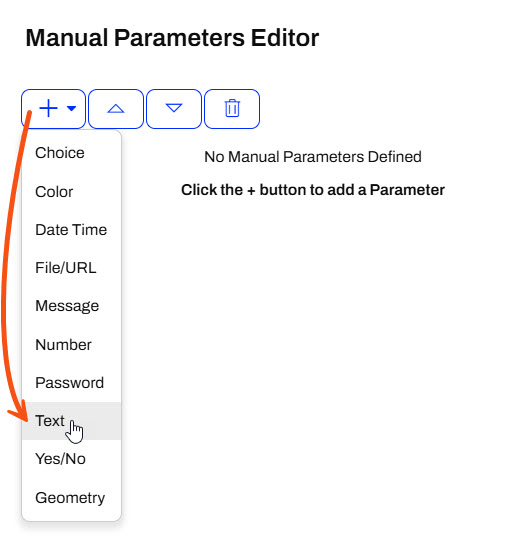
- Rename the parameter to email and change the prompt to Enter your email.
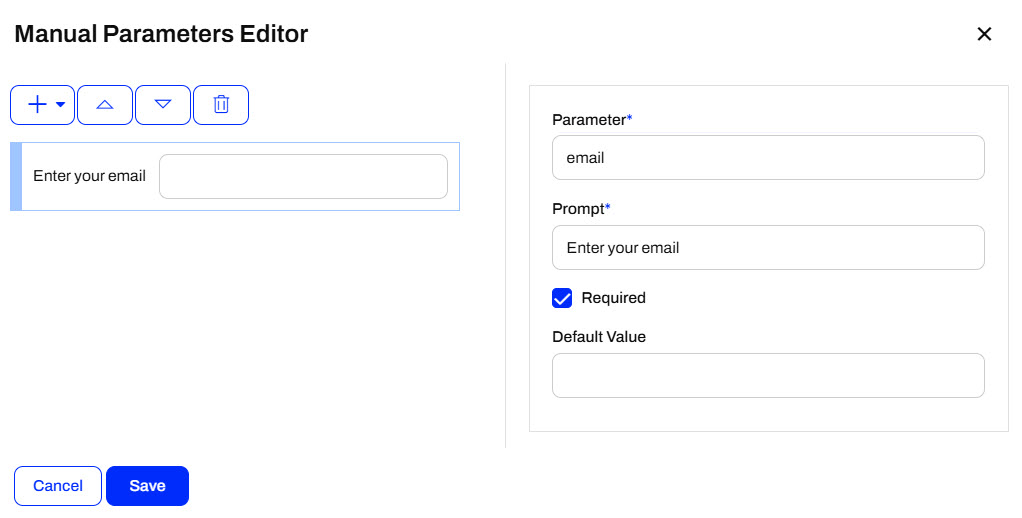
- Click Save to close the Manual Parameters Editor, and then click Apply to close the Manual Trigger Details.
5) Update Email To
The Email action currently sends you an email when the automation runs. You also need to send the email to the address users will enter in the app, using the manual.email parameter.
- Click the Email action icon to open its details.
- Scroll down to the Email To parameter. Use the drop-down menu to open the Text Editor.
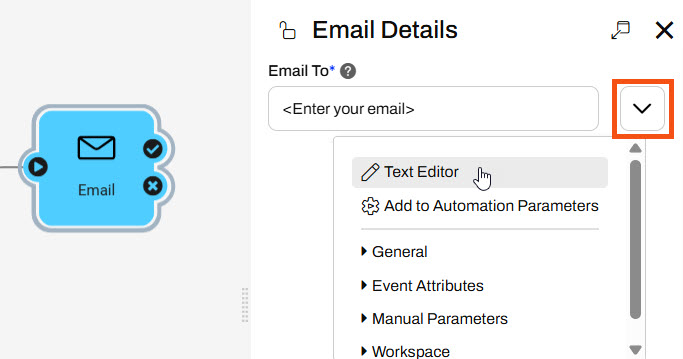
FME Flow sends emails to multiple recipients, separated by commas, in the Email To field.
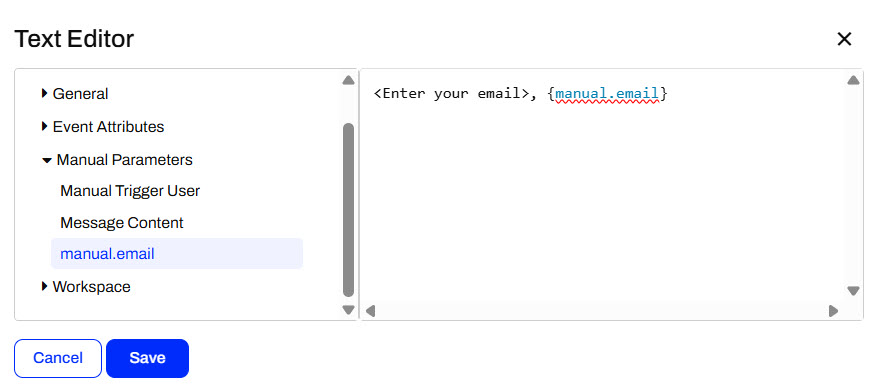
- In the Text Editor, add a comma after your email and select the manual.email attribute.
- Click Save to close the Text Editor.
- Click Validate to ensure the updated parameters are valid; once they are, click Apply to close the Email details.
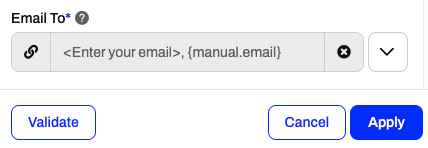
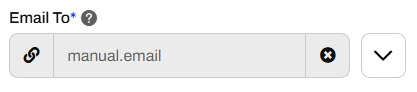
You will enter your email address when you run the Automation App. These current settings will send you two emails with the same information. If you wish to only receive one email, you may solely use the {manual.email} attribute in the Email To parameter.
6) Save Automation
- Save the automation, then click Start.

7) Create Automation App
- Navigate to Flow Apps and select the Automation Apps tab.
- Create a new automation app.
- Give the app a name, title, and description.
- For the Automation, select the Election Locations Update automation.
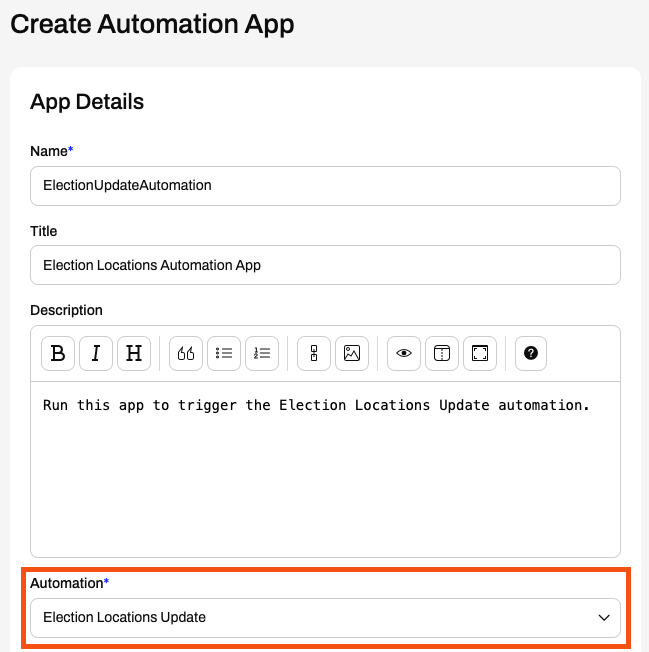
In FME 2026.1, there is currently a bug where the Create Automation App pages display all automations in the Automation field, not just automations that use a manual trigger. If you select an automation without a manual trigger, it will throw an error at runtime.
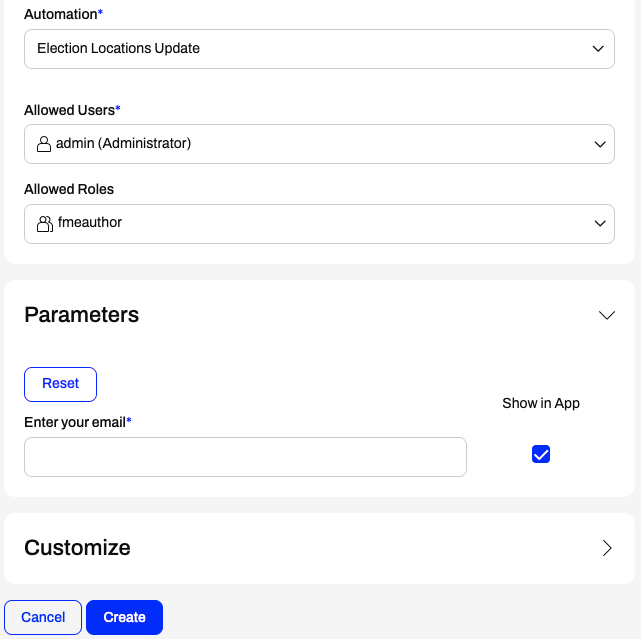
- Add the fmeauthor role to the Allowed Roles.
- Expand Parameters to inspect the manual parameter you created.
- Don't alter any other settings, then click Create to finish creating the app.
FME Flow displays the app URL and lets you copy it or open it directly.
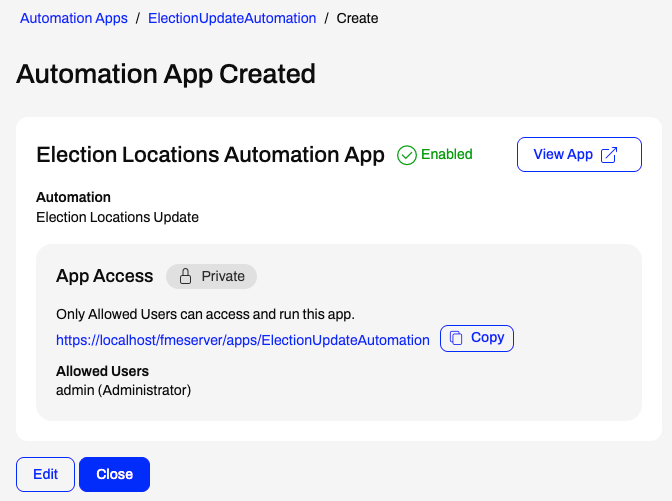
- Click View App to open the app in a new tab.
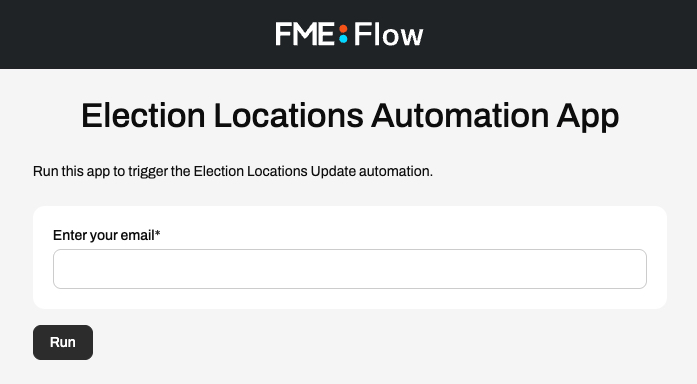
If you receive a warning that the Automation is disabled, you likely forgot to start the Automation. Return to your Automation and start it, then return to your app and refresh the page.
8) Run Automation App
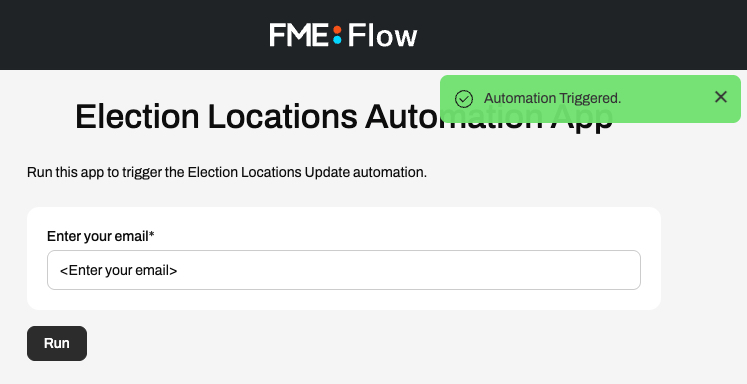
- Enter your email in the app.
- Click Run.
- FME Flow displays an Automation Triggered message at the top right.
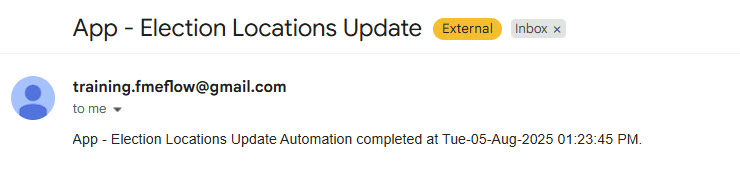
You should receive an email informing you that the automation app ran.
You've now created an automation app to share with Sven's colleagues that will trigger his Election Locations Update automation. His colleagues don't need to be familiar with FME Flow Automations to use and trigger automations, and the app is easily shareable with a URL.
Resources
- Starting project | C:\FMEData\Workspaces\AutomateWorkflowsWithFMEFlow\automate-workflows-with-fme-flow--starting-project.fsproject
- ElectionVoting.gml | C:\FMEData\Data\Elections\ElectionVoting.gml
This lesson takes a slight detour into Flow Apps to cover Automation Apps. For more training on Flow Apps, see Create No-Code Web Apps.
Automation Apps
FME Flow Apps are no-code web applications that let you access FME functionality without any FME experience. They simplify the user experience by turning technical workflows into easy-to-use web forms you can access and share with a URL. Automation Apps allow you to trigger and control input to a pre-built Automation from the web application.
To use an Automation in an Automation App, your Automation must use a Manual Trigger. Manual Triggers do not respond to external events and instead trigger Automations on demand. Automation Apps send messages to Manual Triggers to kick off the Automation.
The only Parameter to configure for a Manual Trigger is the Prompt for JSON on Trigger option. This option allows you to enter JSON input into Automation when you manually trigger it from the Automations canvas. It is usually unnecessary for Automations you plan to trigger through Automation Apps.
Manual Parameters
Manual Triggers have unique Output Attributes called Manual Parameters. Manual Parameters are customizable attributes that you create to take input into your Automation. To add and edit Manual Parameters for an Automation, you must open the Manual Trigger Details. In the Output Attributes tab, you'll see Manual Parameters nested under Success.
You click Manage to open the Manual Parameters Editor, where you create Manual Parameters. Like User Parameters, there are many options for different types of input to your Automation, depending on your workflow.
The Manual Parameters Editor displays the list of parameters on the left side and the properties for individual parameters on the right.
When you create an Automation App, these parameters are displayed on the app's web page for users to enter their values.
To use the input values in your Automation, you reference Manual Parameters in downstream actions like any other Output Attributes and Automation Parameters. All Manual Parameters begin with the prefix manual.
Creating Automation Apps
You create Automation Apps just like any other Flow Apps, by filling out a form with your app details, the Automation you'd like to run, any default parameter values, and customizing the look of your app. To access the form, expand Flow Apps in the side menu and select the Automation Apps tab. Create opens the form to fill out for your app.
For the Automation option, you'll only be able to select Automations on FME Flow that have a Manual Trigger.
In FME 2026.1, there is currently a bug where the Create Automation App pages display all automations in the Automation field, not just automations that use a manual trigger. If you select an automation without a manual trigger, it will throw an error at runtime.
Once you select an Automation, the Parameters section populates with the Manual Parameters you created in the Manual Trigger. You may set default values for parameters and optionally hide them from the app so the end-user cannot alter the default value.
The next section is Resource Permissions, which allows you to grant app users access to certain contents and directories in Resources. You may want to grant access to a Resources location so app users can select data for processing from it.
The last section to create your app is the Customize section. You can add icons and banners and change the app's colors to remove the default FME Flow branding and match your organization. Ultimately, you can make Flow Apps look like they don't use FME Flow at all.
For more information on customizing apps, see our Flow Apps documentation and/or the Getting Started with FME Flow Apps tutorial.
Once you create your app, FME Flow displays the app URL and some accessibility information. You can view the app in a new tab or copy the URL to share.
Running Automation Apps
To access an automation app, you must be logged in to FME Flow and in a web browser with access to FME Flow. If you are already logged in to FME Flow in the browser session, the app will open without prompting you to log in again.
Once the app loads, enter your parameter values and click Run.
FME Flow will display a message at the top right of the app indicating whether the Automation triggers successfully or not.
Automation App Troubleshooting Tips
- To run an automation using an app, the automation must use a Manual Trigger. You cannot select automations without a Manual Trigger from the Create Automation App page.
- To run an automation from an app, you must start the automation in the running state.
- If you receive a warning message saying, "The selected automation is disabled," your app is enabled, but the automation has not been started. Please return to the automation and start it.
For further instructions and information on Automation Apps, see our documentation on Automation Apps and Manual Triggers.
Exercise
This exercise continues where the Chain Multiple Jobs in Automations exercise left off. You should complete the previous exercise before continuing with this one.
Sven continues working with his Election Locations Update automation. It works great to update the data annually; however, some of his colleagues in the Planning department want to update the Elections data themselves when they use it for specific projects. Sven would like to allow his colleagues to manually trigger his automation so they don't have to ask him to run it. Not all of Sven's colleagues are familiar with FME Flow Automations, so he creates an automation app that lets them trigger the automation.
In this exercise, you will:
- Add a manual trigger to Sven's automation.
- Configure manual parameters to take input to the automation.
- Create an automation app to trigger the automation.
1) Open Automation
First, you'll want to modify Sven's existing automation to add a manual trigger so it can be run with an automation app.
- Navigate to FME Flow and open Automations.
- Click the Election Locations Update automation to open it.
2) Stop the Automation
- Stop the running automation to edit it.
3) Add a Manual Trigger
- Add a second trigger to the canvas.
- Connect it to the input port of the update-voting-places workspace action.
- Set the Trigger to Manual Trigger.
- In the trigger Parameters tab, disable Prompt for JSON on Trigger.
- You don't need to take input to the automation when it is manually triggered from the automation itself.
4) Add Manual Parameter
- Go to the Output Attributes tab and expand the Success section.
- Select Manage next to Manual Parameters to open the Manual Parameters Editor.
You want the user running the automation app to enter their email so they receive an alert that the automation triggered. To do this, you'll take their emails as input using a Text parameter.
- Rename the parameter to email and change the prompt to Enter your email.
- Click Save to close the Manual Parameters Editor, and then click Apply to close the Manual Trigger Details.
5) Update Email To
The Email action currently sends you an email when the automation runs. You also need to send the email to the address users will enter in the app, using the manual.email parameter.
- Click the Email action icon to open its details.
- Scroll down to the Email To parameter. Use the drop-down menu to open the Text Editor.
FME Flow sends emails to multiple recipients, separated by commas, in the Email To field.
- In the Text Editor, add a comma after your email and select the manual.email attribute.
- Click Save to close the Text Editor.
- Click Validate to ensure the updated parameters are valid; once they are, click Apply to close the Email details.
You will enter your email address when you run the Automation App. These current settings will send you two emails with the same information. If you wish to only receive one email, you may solely use the {manual.email} attribute in the Email To parameter.
6) Save Automation
- Save the automation, then click Start.
7) Create Automation App
- Navigate to Flow Apps and select the Automation Apps tab.
- Create a new automation app.
- Give the app a name, title, and description.
- For the Automation, select the Election Locations Update automation.
In FME 2026.1, there is currently a bug where the Create Automation App pages display all automations in the Automation field, not just automations that use a manual trigger. If you select an automation without a manual trigger, it will throw an error at runtime.
- Add the fmeauthor role to the Allowed Roles.
- Expand Parameters to inspect the manual parameter you created.
- Don't alter any other settings, then click Create to finish creating the app.
FME Flow displays the app URL and lets you copy it or open it directly.
- Click View App to open the app in a new tab.
If you receive a warning that the Automation is disabled, you likely forgot to start the Automation. Return to your Automation and start it, then return to your app and refresh the page.
8) Run Automation App
- Enter your email in the app.
- Click Run.
- FME Flow displays an Automation Triggered message at the top right.
You should receive an email informing you that the automation app ran.
You've now created an automation app to share with Sven's colleagues that will trigger his Election Locations Update automation. His colleagues don't need to be familiar with FME Flow Automations to use and trigger automations, and the app is easily shareable with a URL.